How to Create a 3D World with AI Spatial Generation — A Step-by-Step Tutorial
Learn how to turn any photo into a navigable 3D world using Aholo 3D's AI Spatial Gen. From image capture to 3D exploration — complete workflow tutorial.
What You'll Build in This Tutorial
By the end of this tutorial, you'll turn a single image into a fully navigable 3D world — one you can walk through, fly around, and explore from every angle.
No 3D modeling experience required. No expensive software. Just a picture and a browser.
Who this is for:
- Interior designers presenting concepts to clients
- Concept artists prototyping virtual environments
- E-commerce brands building virtual showrooms
- Anyone curious about creating 3D worlds without learning Blender or Unity
Step 1 — Generate or Capture Your Source Image
Everything starts with one good image. The quality of your source image directly determines the quality of your 3D world, so this step is worth getting right.
Option A — Using AI Image Generators
If you're building a concept space or an imaginary world, AI image generators are your fastest starting point.
Recommended tools: Midjourney, DALL·E 3, Stable Diffusion
Prompt structure that works best:
[Room type] with [architectural style], [lighting description],
[color palette], wide-angle interior shot, high resolution,
no people, landscape orientation
Example prompts:
"Spacious Scandinavian living room with floor-to-ceiling windows, soft natural morning light, neutral beige and oak color palette, wide-angle interior shot, high resolution, no people, landscape orientation"
"Cyberpunk underground laboratory, neon blue and purple ambient lighting, holographic displays, exposed concrete walls, wide-angle interior shot, high resolution, no people, landscape orientation"
"Japanese zen tea room overlooking a bamboo forest, warm afternoon sunlight, minimal decor, tatami flooring, wide-angle interior shot, high resolution, no people, landscape orientation"
Output settings: Generate at the highest resolution available. 16:9 or similar landscape ratio works best.
Option B — Photographing a Real Interior
Working with a real space? A well-composed photo works just as well.
The ideal source image checklist:
| Criteria | Why It Matters |
|---|---|
| Wide-angle lens | Captures more of the room — gives the AI more spatial context to work with |
| No people | Human figures confuse depth estimation and create artifacts |
| High resolution | More pixel data = better detail in the final 3D world |
| Landscape orientation | Matches the aspect ratio of the 3D viewport |
| Indoor space | SpatialGen is optimized for interior and architectural spaces |
The style is entirely up to you — photorealistic living rooms, abstract concept spaces, stylized fantasy interiors, and AI-generated surreal environments all work. The AI reads spatial structure, not just visual style.
Image Quality Checklist
Before uploading, double-check:
- Sharp, in-focus image (no motion blur)
- Wide-angle composition showing most of the room
- No people or animals in the frame
- Landscape orientation (16:9, 4:3, or similar)
- Resolution at least 1024px on the short edge
- Even lighting (avoid harsh backlight or deep shadows)
- Minimal clutter — clear spatial layout reads better
Step 2 — Upload Your Image to Aholo3D SpatialGen
Getting Started
Head to the Aholo 3D spatial intelligence platform and create a free account if you haven't already. Once logged in, select AI Spatial Gen from the dashboard.
Upload & Configure
Drag and drop your image onto the upload area, or click to browse. The platform accepts common formats: JPG, PNG, WebP.
After uploading, you'll see a preview of your image. Take a moment to confirm it looks right — you can crop or rotate if needed before proceeding.
Hit Create and the AI gets to work.
Adding Text Prompts (Optional)
Before generating, you can optionally add a text prompt to guide the AI's spatial understanding.
This isn't required — the image alone is the primary driver of the reconstruction. But a text prompt can help the AI interpret ambiguous details. For example, if your image is a concept sketch with unconventional architecture, a label like "futuristic bioluminescent cave dwelling" gives the AI additional context to align with your creative intent.
Example prompts:
- "cozy Scandinavian living room with natural light"
- "cyberpunk underground lab with neon reflections"
- "minimalist gallery space with concrete floors"
The text doesn't define geometry directly. It helps the AI stay aligned with your vision as it reconstructs the spatial envelope.
Step 3 — Generate, Explore & Export Your 3D World
From Image to Panorama to 3D World
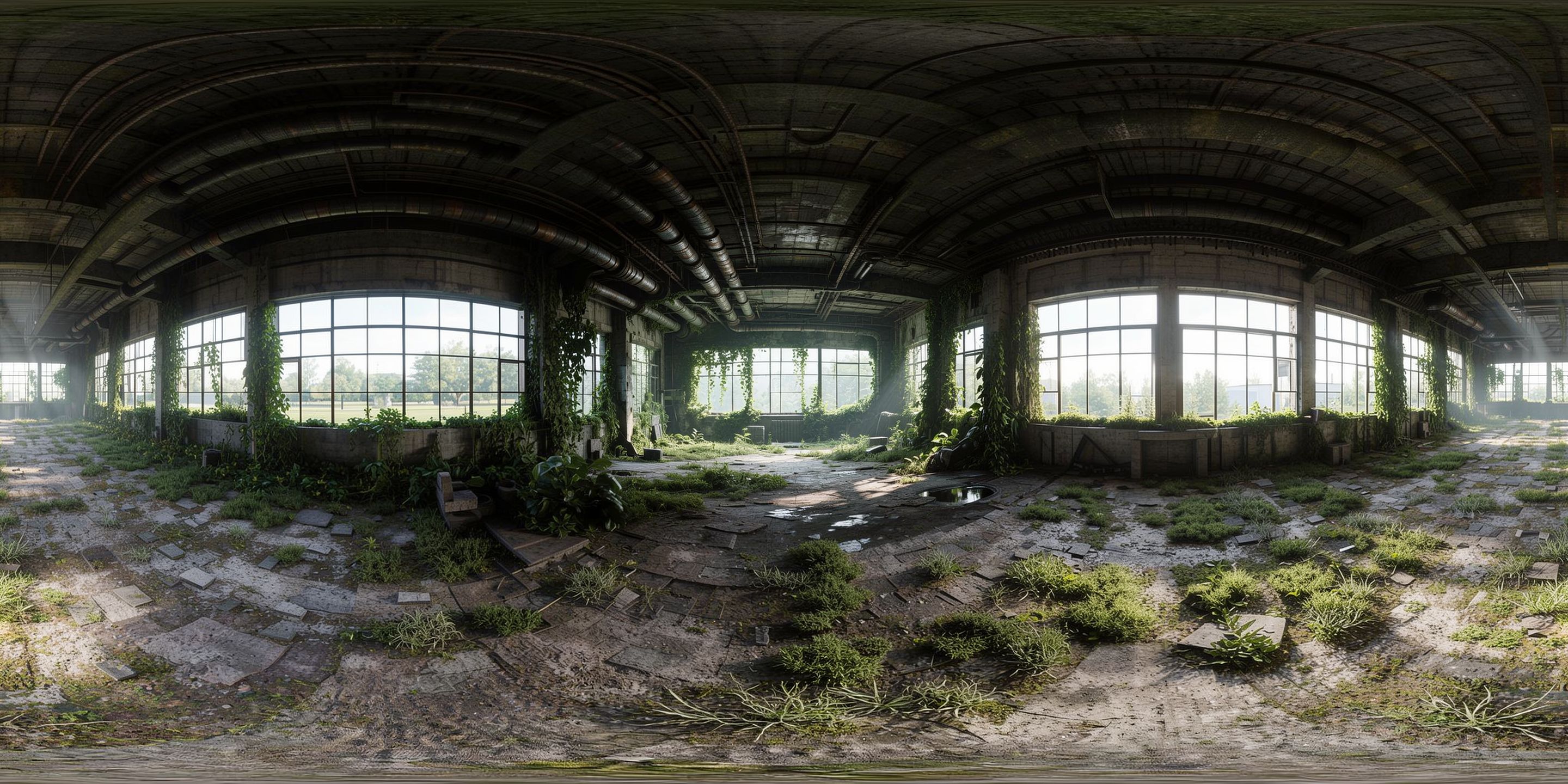
Here's what happens behind the scenes: Aholo3D SpatialGen first generates a full 360-degree panoramic image from your single input photo. The AI reasons about what the rest of the room would look like — walls, ceiling, floor, furniture — and paints a complete spherical view.
From that panorama, the system builds a 3D Gaussian Splatting (3DGS) representation. Unlike traditional 3D models made of polygons and flat textures, a 3DGS world is composed of millions of semi-transparent Gaussian ellipsoids — each carrying its own color, opacity, and depth information. This is what gives the generated space its natural lighting, soft shadows, and material realism.
The result: a volumetric 3D world you can actually move through, not just a static 360 photo.
Navigating the 3D Space
Once your 3D world is ready, you have three ways to explore:
Fly Camera — Free-roam mode. Rotate, zoom, and pan to inspect the space from any angle. Great for getting an overview of the entire room layout.
Orbit Camera — Pivot around a fixed center point. Useful for examining a specific area in detail, like a piece of furniture or a corner of the room.
Walk Mode — First-person navigation. Use WASD keys to walk through the space and press Space to jump. This is the most immersive way to experience your 3D world — it feels like walking through a real room. Walk mode lets you explore at human scale, naturally moving around furniture and through doorways.
Editing & Refining
After generation, you can fine-tune the result:
- Crop — Trim unwanted areas or clean up the edges of the space
- Adjust starting view — Set where the camera begins when someone opens the scene
- Add annotations — Label key elements or add measurements for reference
- Measurement tools — Measure distances and dimensions within the 3D space
Export & Share
Your 3D world isn't locked inside the platform. You can:
- Export as PLY — Standard 3D point cloud format, compatible with most 3D software
- Export as SPZ — Optimized format for web and real-time viewing
- Download the panorama — The full 360° panoramic image, usable in any panorama viewer
- Export a video — Record a fly-through or walk-through clip
- Share with a link — One-click sharing, no software installation needed for viewers
- Embed — Drop the 3D world into your portfolio, website, or client presentation via iframe
Real-World Workflow Examples
Interior Designer — Client Proposal
Workflow: Photograph the client's empty room → SpatialGen creates a 3D world → Explore layout options and present the spatial vision before committing to a single piece of furniture.
Instead of sending a flat mood board, you send a link the client can walk through themselves.
Concept Artist — Virtual World Creation
Workflow: Generate a concept image in Midjourney → Upload to SpatialGen → Step inside the world you imagined → Use the 3D exploration as reference for environment modeling or team brainstorming.
What used to take days of blocking out geometry now starts with a 5-minute spatial prototype.
E-Commerce — Virtual Showroom
Workflow: Create a branded room image → Generate the 3D world → Embed on your product page → Customers explore products in-context rather than against a white background.
Pro Tips for the Best 3D World Results
5 Image Composition Rules
- Wide-angle over close-up — The more of the room the AI sees, the more complete the spatial reconstruction
- Front-facing over angled — A straight-on view of the room gives the cleanest spatial read
- Avoid fisheye distortion — Extreme lens distortion confuses depth estimation; use rectilinear wide-angle if possible
- Even lighting — Balanced exposure throughout the room produces the most natural 3D result
- Clear layout — A room with well-defined walls, floor, and ceiling reads better than a cluttered, ambiguous space
FAQ
Can I really create a 3D world from a single image?
Yes. Aholo3D SpatialGen uses spatial intelligence to reason about room geometry, extending a single viewpoint into a full 3D world. While it can't literally see behind objects, it predicts the most probable spatial layout based on architectural patterns learned from millions of environments.
What's the difference between 3DGS and AI SpatialGen in this workflow?
3D Gaussian Splatting (3DGS) is the rendering technology that represents your 3D world as millions of volumetric splats. AI SpatialGen is the generation pipeline that creates the 3D world from your image in the first place. The two work together: SpatialGen builds the space, and 3DGS makes it look real. If you want to dive deeper into the technology, check out our Image to 3D Explained guide.
What image formats are supported?
JPG, PNG, and WebP.
How long does generation take?
Typically 3–5 minutes for the panoramic result; while the 3DGS generation may take about 20 minutes. You'll see a progress indicator while the AI works.
Can I edit the 3D world after generation?
Yes. You can crop, adjust the starting view, add annotations, and take measurements. The editing tools are available directly in the 3D viewer.
Is my uploaded image stored or shared?
Your images and generated worlds are private by default. Only people you explicitly share the link with can access them.
Conclusion & Next Steps
You've just learned how to create a 3D world from a single image:
Source image → Panorama → 3DGS spatial generation → Navigable 3D world
Whether you're an interior designer speeding up client proposals, a concept artist prototyping environments, or just someone who wants to step inside a picture — the barrier between 2D images and 3D worlds is now thinner than ever.
The tools are ready. All you need is an image and an idea.
Try Aholo 3D AI Spatial Gen for free.
Continue reading: